Export Your Saved Columns In Facebook Ads Manager
Are you still adjusting all the columns in Facebook Ads Manager? There is a simple way to Export Your Saved Columns in Facebook Ads Manager.
Read more →
Book a free audit call and we will tell you which lever moves your numbers first.
Book a free auditSometimes you want to duplicate a save audience, but there is no direct option to duplicate the audience.
So how can I duplicate a saved audience in facebook?
There is a manual way through which you can duplicate the save audience without any hassles, that we will cover in this post.
The first step, Select the audience by checking the box which you want to duplicate. Then, click on the Edit button
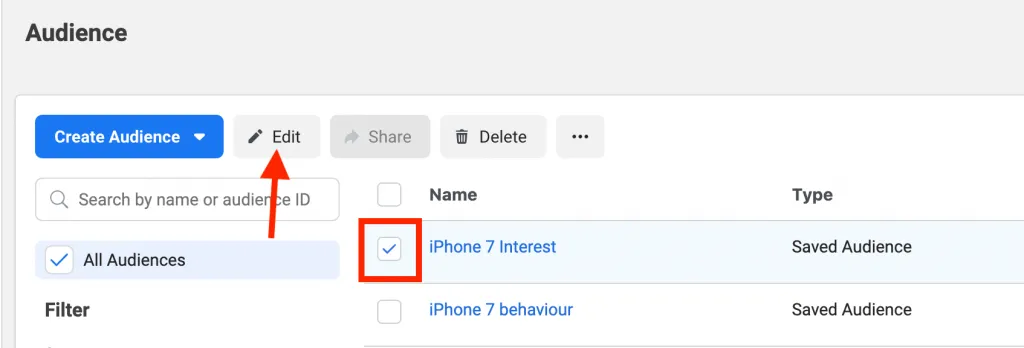
When you click on Edit button, the audience will open. To Duplicate the audience you have to simply edit the name of the audience.
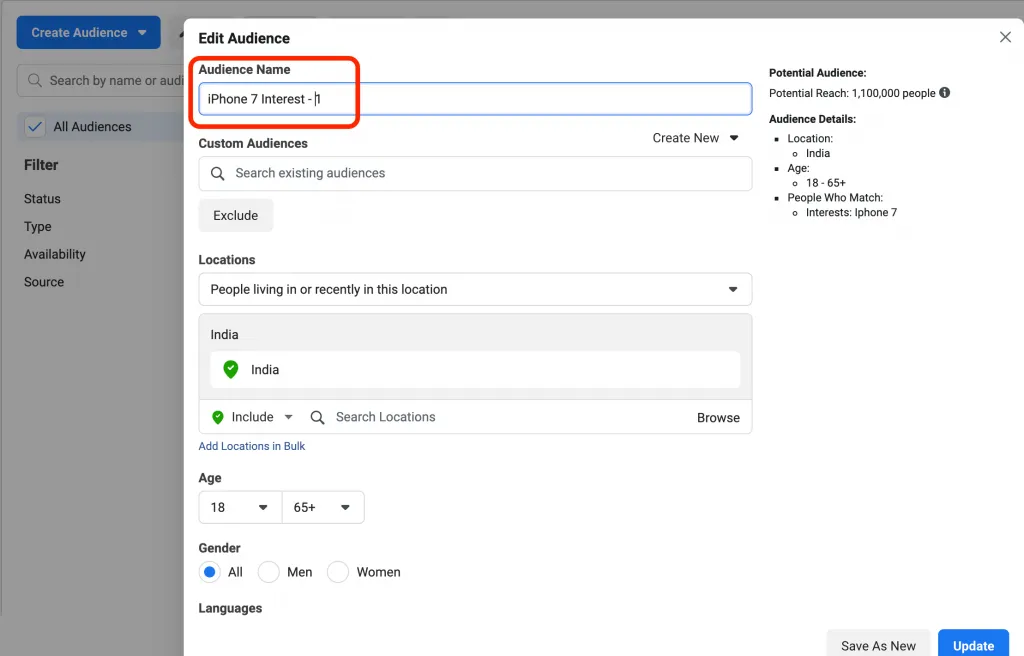
For example, I have written “iPhone 7 Interest” in the old audience and to duplicate the same audience I have changed the name “iPhone 7 Interest -1”.
After you edited the name of the audience, you have to click on “Save As New.”
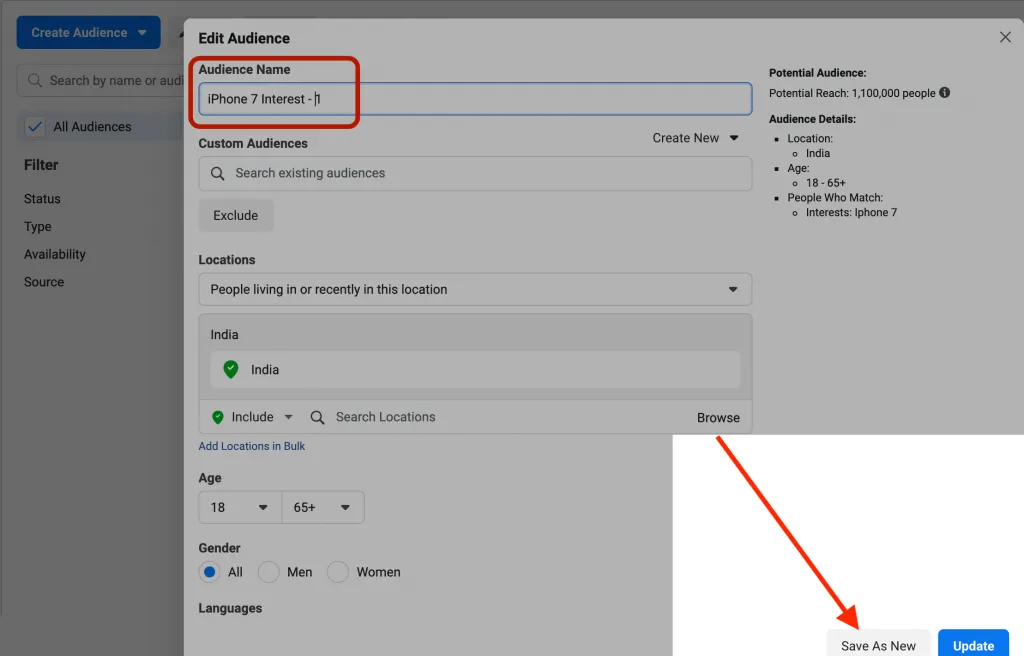
If you clicked on the update button then it will update in the existing audience and it will not duplicate saved audience in Facebook.
Once you click “Save As New”, a confirmation will appear to show that your audience is about to copy and Facebook will automatically add ” –copy” in the audience name.
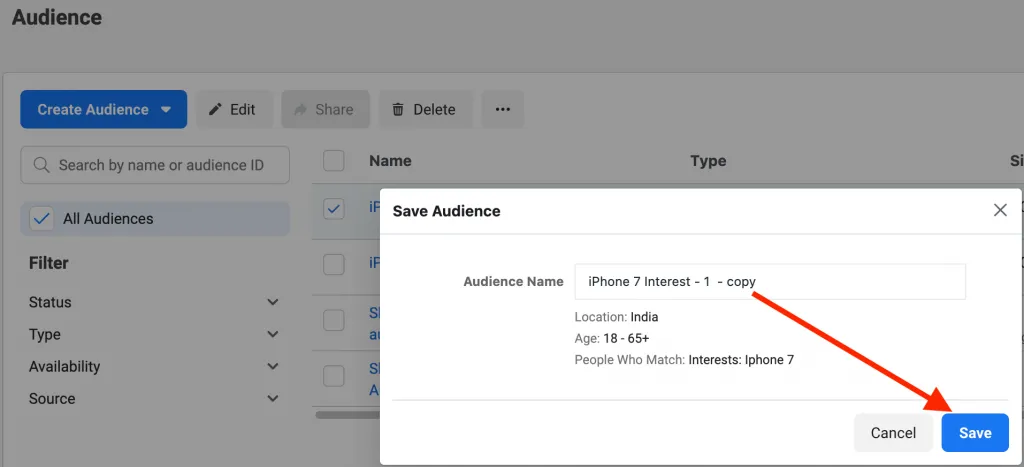
Click on the Save button once you have edited the audience name again.
You will see a new audience has been created in the Facebook audience list. If you are not able to see the audience then refresh the page once you will be able to see the new duplicate audience you have created.
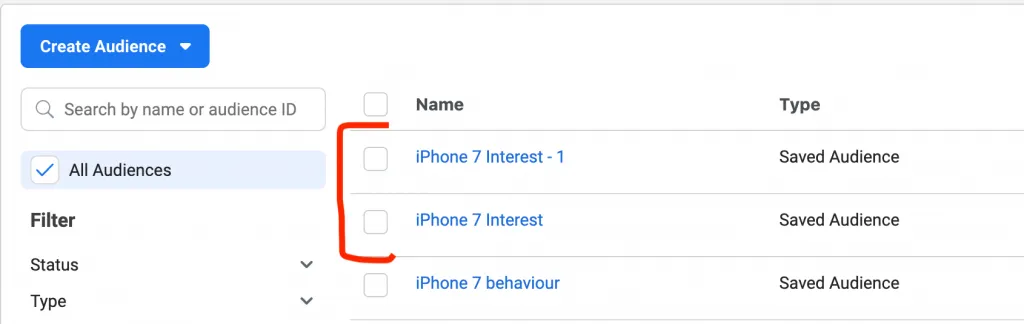
That’s it! you have successfully created a duplicate audience from the existing audience list.
I hope this small trick will help you duplicating the audience.
Let us know your thoughts about this through comment section!
We set up tracking, run the ads and fix the funnel for D2C brands — so guides like this one become someone else's job.
Are you still adjusting all the columns in Facebook Ads Manager? There is a simple way to Export Your Saved Columns in Facebook Ads Manager.
Read more →
Are you confused about Facebook broad targeting? Then you should test facebook broad targeting for your brand, we have seen positive results for a few brands.
Read more →
This tutorial will learn how to implement Facebook Conversion API for Shopify Store using Native App.
Read more →