
How To Exclude Internal Traffic In Google Analytics 4
To overcome this problem we have to exclude the IP address so that Google Analytics 4 don't track the audience from these IP address. Read More: How to
Read more →
Book a free audit call and I will tell you which fix moves your numbers first.
Book a free auditGoogle Analytics 4 (GA4) has taken the digital analytics world by storm. With its enhanced features and improved interface, GA4 allows you to go beyond the basics of tracking visitor behavior on your website. One valuable insight that GA4 can provide is the ability to view full page URLs.
In this article, we’ll guide you through the steps to view full page URLs in GA4 and explore how this information can help you optimize your website for better user experience and increased conversions. Let’s dive in!
Before we delve into the process of viewing full page URLs in GA4, let’s first understand what a full page URL is and why it’s important.
A full page URL is the complete web address of a specific page on your website. It includes the protocol (HTTP or HTTPS), domain name, and any additional path or query parameters. For example, the full page URL of a blog post might look like this: https://www.example.com/blog/how-to-view-full-page-urls-in-ga4.
Full page URLs provide more detailed information about the pages your visitors interact with. By analyzing full page URLs, you can uncover patterns and trends in user behavior, identify popular content, and discover potential areas for improvement on your website.
GA4 offers a wealth of information to help you make data-driven decisions to optimize your website. Here are some reasons why you should view full page URLs in GA4:
Follow these steps to view full page URLs in GA4:
Step-1: Log in to your Google Analytics account and select the GA4 property you want to analyze.
Step-2: Navigate to the “Explore” section in the left-hand menu.
Step-3: Click on “Create a new exploration” to access the report.
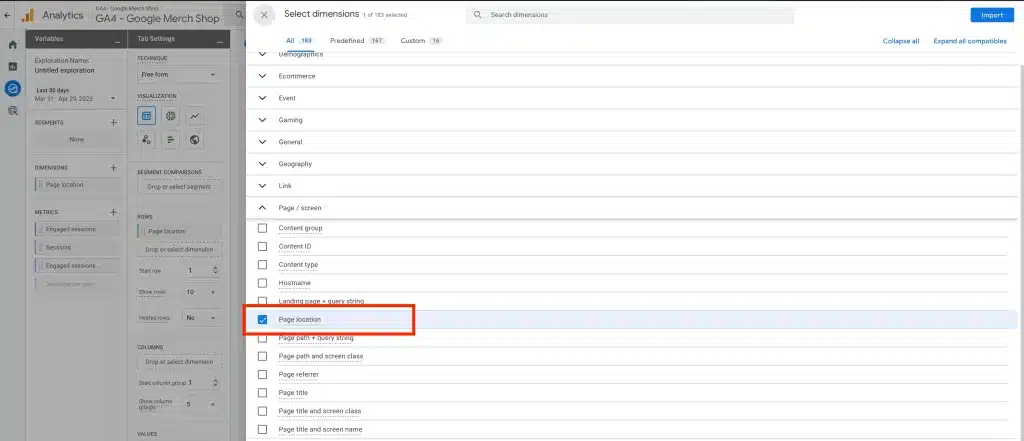
Step-4: Under the “Dimension” dropdown, select “Page Location”
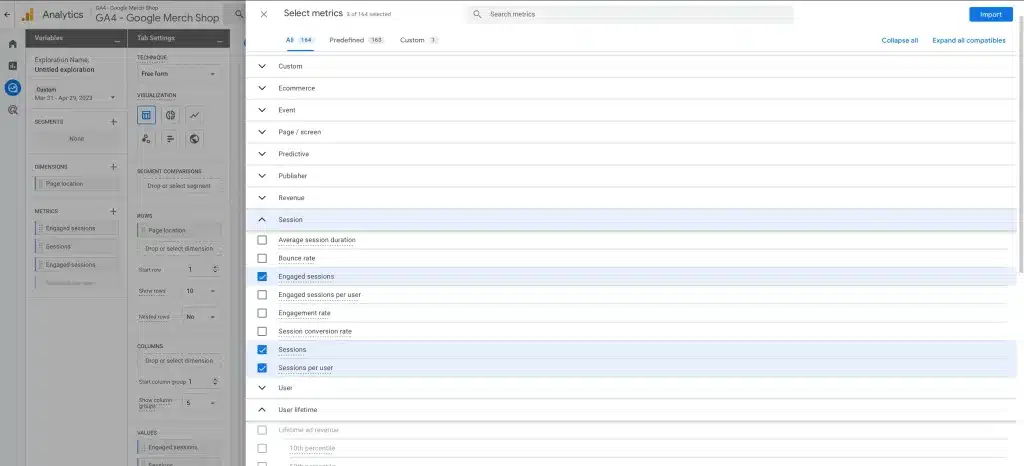
Step-5: For the Metrics Search for “Session Metrics” and Import the metrics you want to see in the report. Then Double Click on the Metrics to Add these Metrics in Values.
The report will now display full page URLs, including any additional path or query parameters.
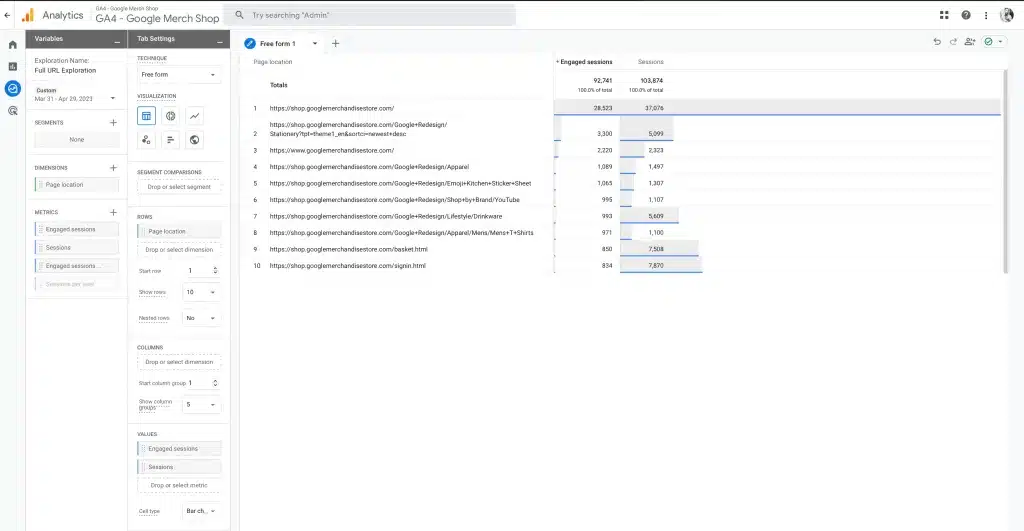
Once you’ve successfully viewed full page URLs in GA4, use these insights to optimize your website:
Yes, you can adjust the date range in the top right corner of the GA4 interface to view full page URLs for a specific period.
Yes, you can export the full page URLs report as a CSV, TSV, or Excel file by clicking the “Export” button in the top right corner of the report.
In GA4, you can add secondary dimensions to the full page URLs report to segment data by various criteria, such as device type, traffic source, or user location.
By following the steps and strategies outlined in this article, you’ll be well-equipped to view full page URLs in GA4 and use this valuable information to optimize your website for improved user experience and increased conversions. Happy analyzing!
I fix the tracking, run the ads and plug the funnel leaks for $700 a month — so guides like this one become my job, not yours.
To overcome this problem we have to exclude the IP address so that Google Analytics 4 don't track the audience from these IP address. Read More: How to
Read more →
Google Analytics automatically reflects where the traffic is coming from and displays the domain names of these sites as the referral-traffic in your report.
Read more →
Postbacks allow Google Analytics to ping ad network when it detects an app install ("first launch") or in-app purchase ("Transaction") using a third party
Read more →