
How To View Full Page URLs In GA4
Discover how to view full page URLs in GA4 and gain deeper insights into your website's performance. Uncover actionable strategies to boost user experience and conversions.
Read more →
Book a free audit call and I will tell you which fix moves your numbers first.
Book a free auditPostbacks allow Google Analytics to ping ad network when it detects an app install (“first launch”) or in-app purchase (“Transaction”) using a third party network.
These are the ad networks available in Google Analytics:
If you are using Google Analytics 4 then there is 62 Advertising Networks from which you can select.
Before you enable or start using Postbacks, confirm that iOS install tracking or Android tracking are configured for your app.
Step-1: Go to Google Analytics 4 dashboard
Step-2: In the left pane, select Events > Conversions.
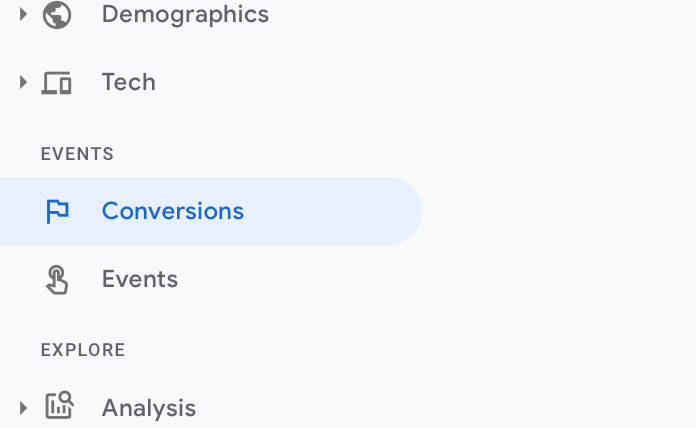
Step-3: Click Network Settings and then click on the New network
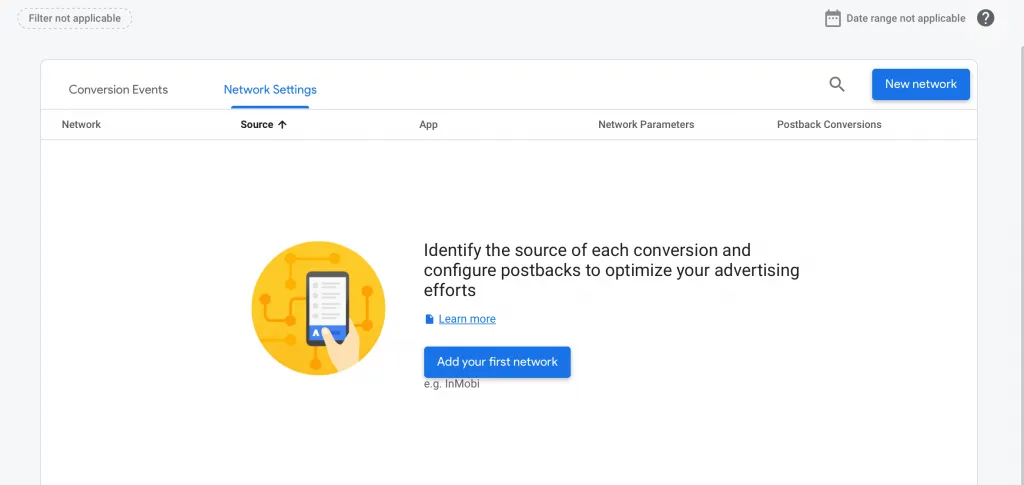
Step-4: Select the ad network then select the app.
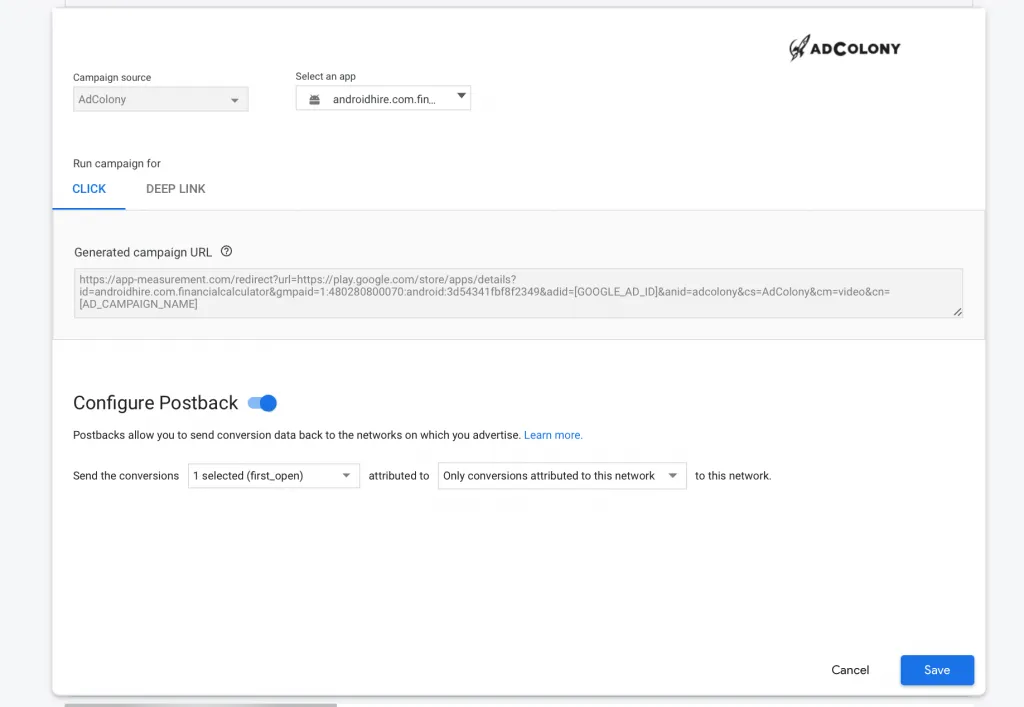
Step-5: Enable the Configure postback, Select the conversions you want to send, and select Only conversions attributed to this network or All conversions.
Step-6: Click Save.

Step-1: Go to Google Analytics and then go to Admin and select your property then click on Postbacks.
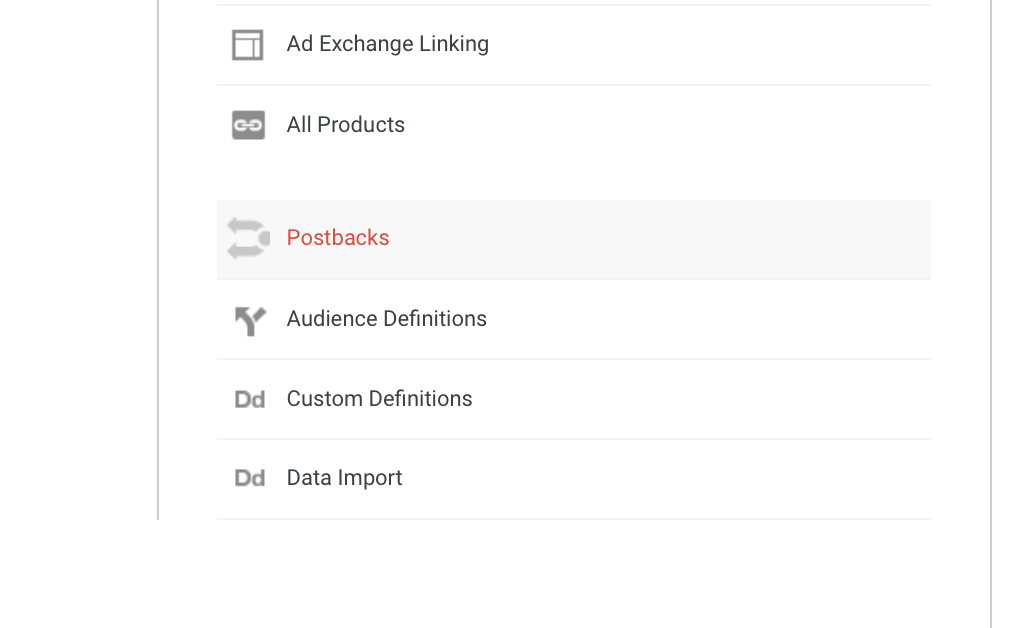
Step-2: Click + ADD NEW.
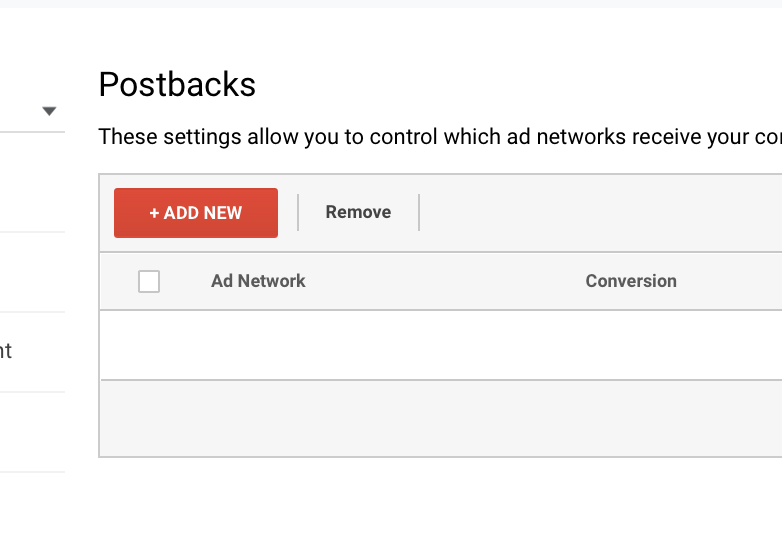
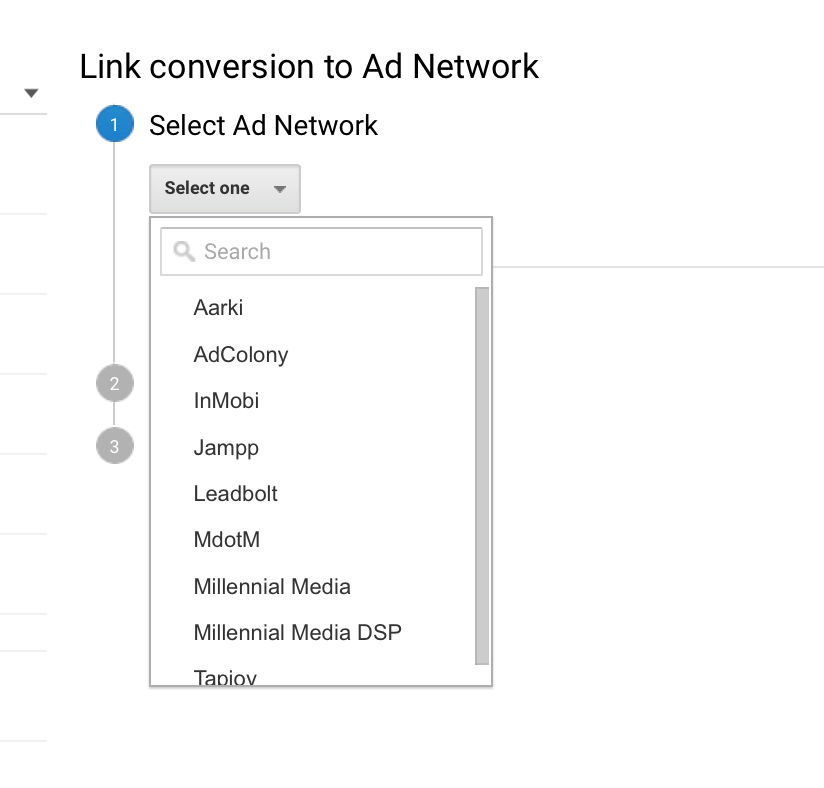
Step-3: Select an Ad Network from the drop-down menu.
Step-4: Select a view and select a conversion type you want to send to the ad network.
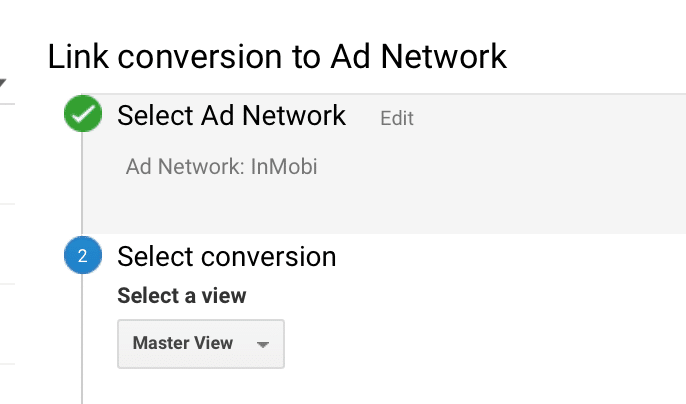
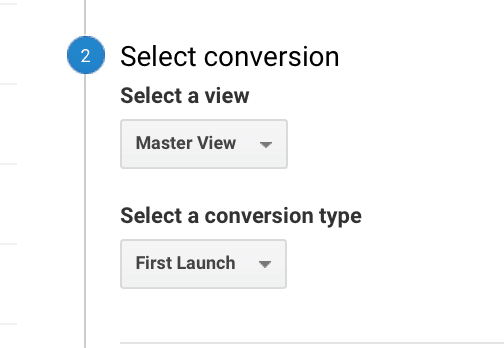
Step-5: In Add Network Parameters you have to enter Property ID (app or account ID) Google Analytics will ask you for the relevant parameter for that network which you will select.
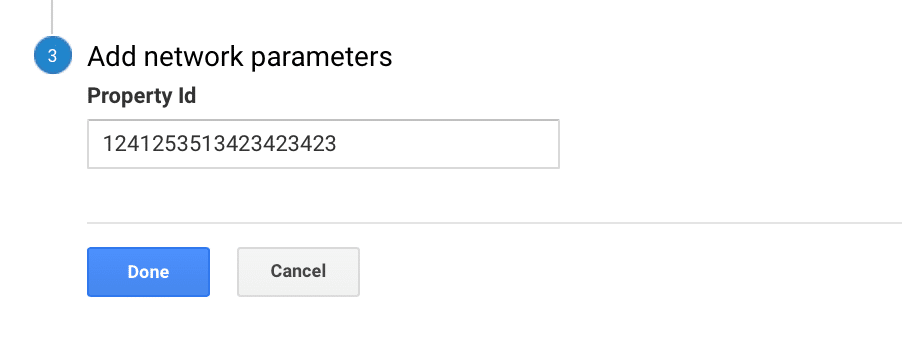
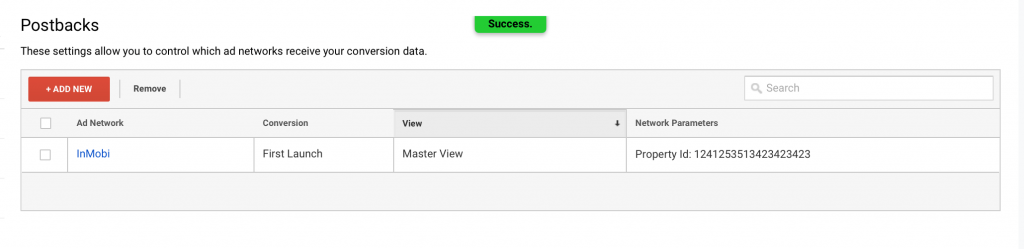
Step-6: Click Done. You are done.
I fix the tracking, run the ads and plug the funnel leaks for $700 a month — so guides like this one become my job, not yours.
Discover how to view full page URLs in GA4 and gain deeper insights into your website's performance. Uncover actionable strategies to boost user experience and conversions.
Read more →
To overcome this problem we have to exclude the IP address so that Google Analytics 4 don't track the audience from these IP address. Read More: How to
Read more →
Google Analytics automatically reflects where the traffic is coming from and displays the domain names of these sites as the referral-traffic in your report.
Read more →